Typography art generator: turn any photo into text art
Upload an image and watch it get rebuilt from words, letters and characters, one part at a time. Pick your own text, font, colours and animation, then download the result.
- Free
- No sign-up
- Private, in-browser
- PNG & video export
Typography art examples
Famous public-domain artworks rebuilt with this generator. The small picture in the corner of each card is the original.
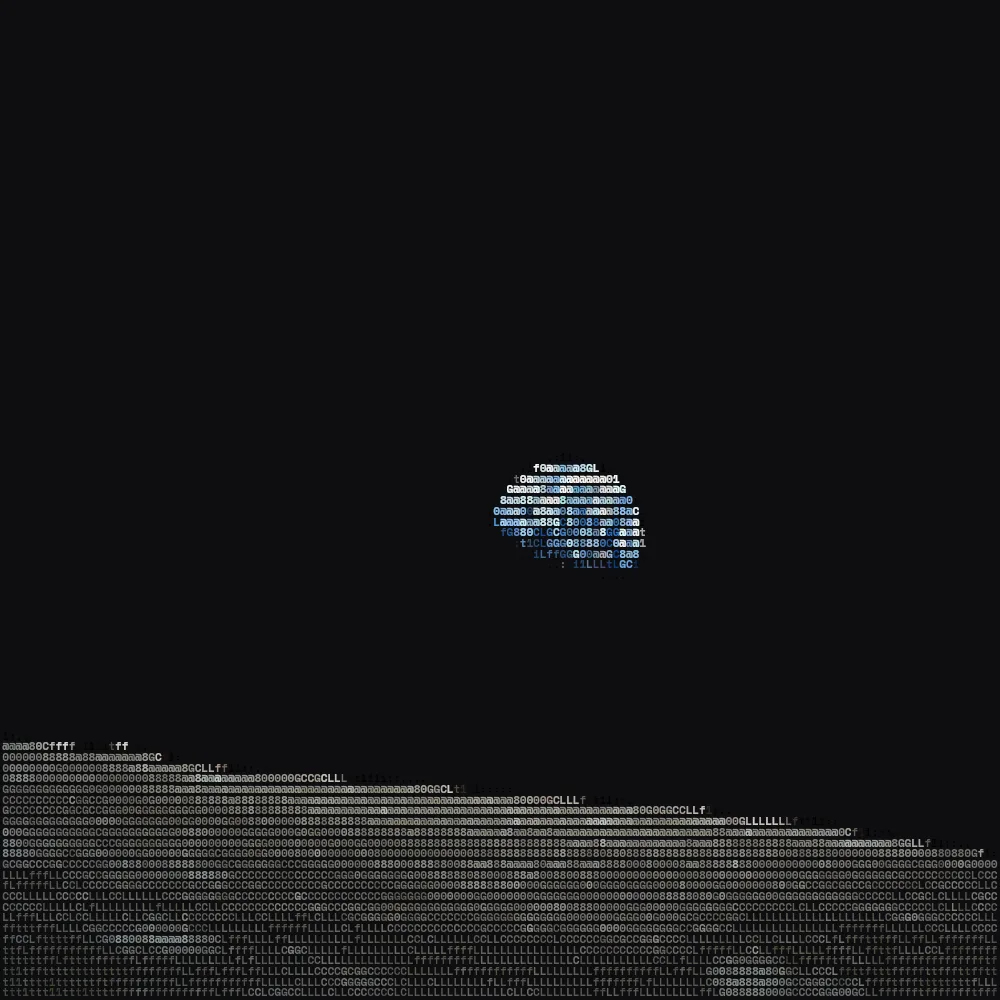
 OriginalEarthriseWilliam Anders, NASA, 1968 · public domainGridoriginal colours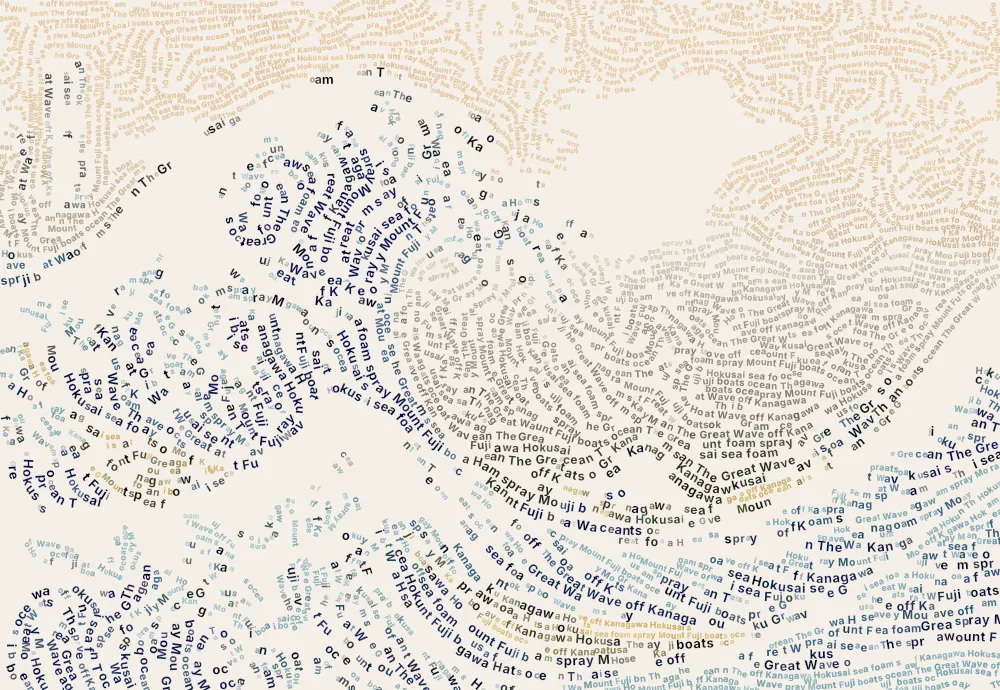
 OriginalThe Great Wave off KanagawaKatsushika Hokusai, c. 1831 · public domainFloworiginal colours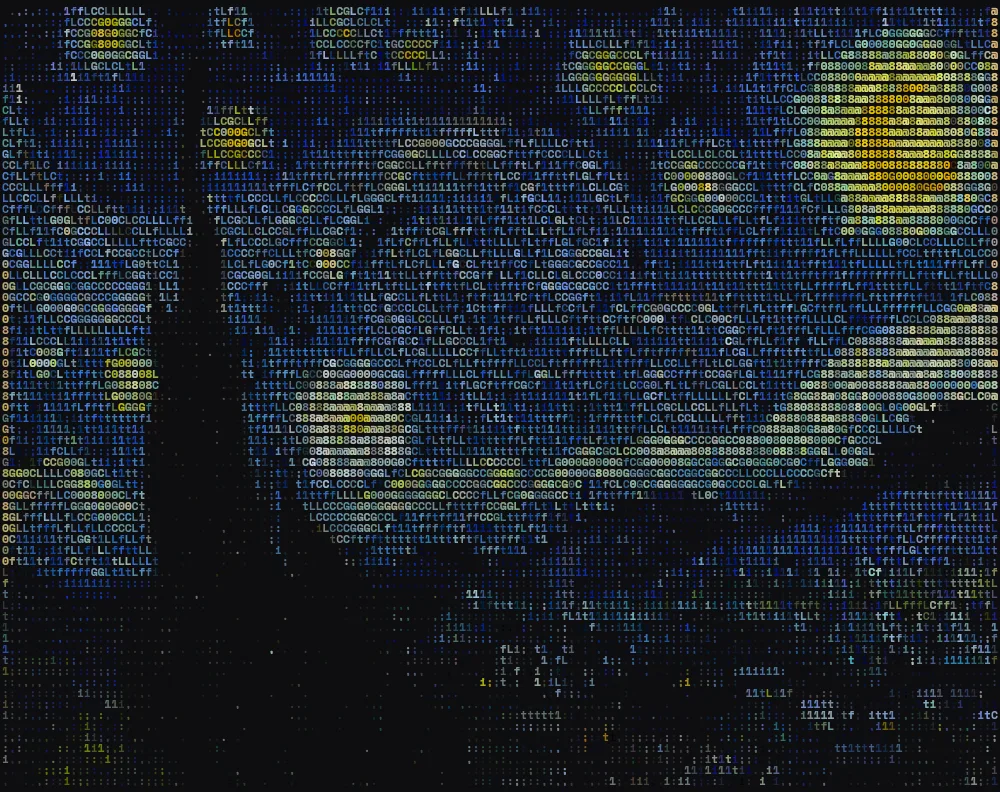
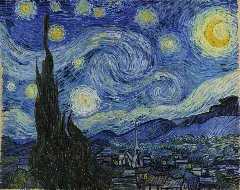 OriginalThe Starry NightVincent van Gogh, 1889 · public domainGridvivid colours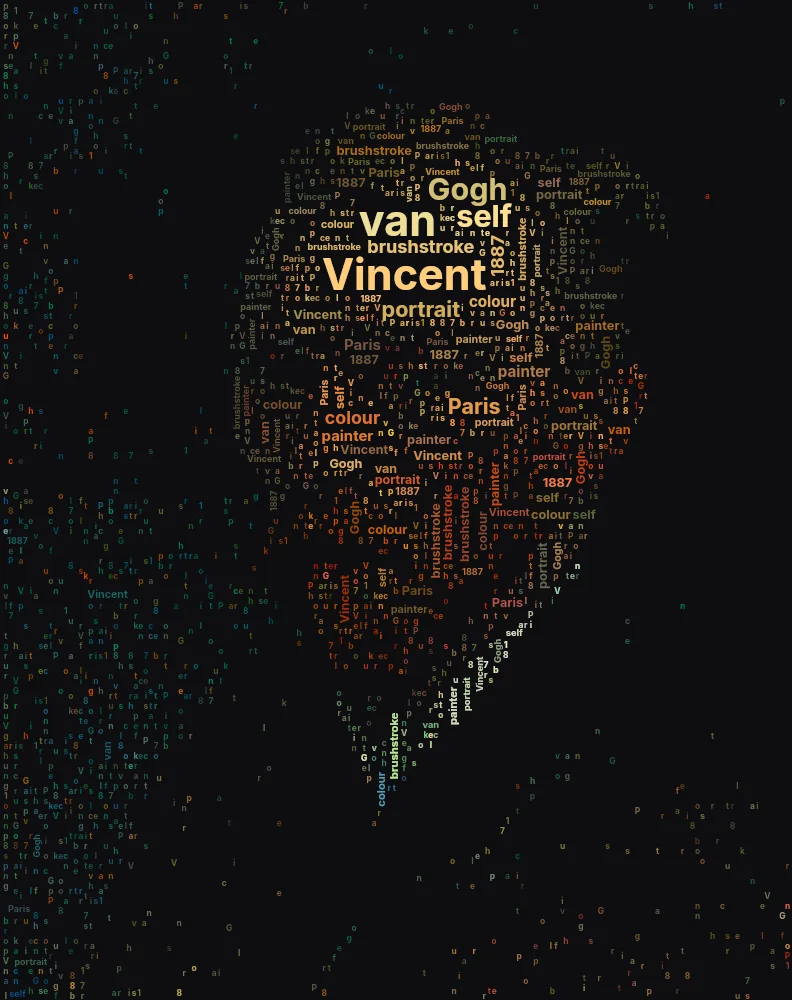
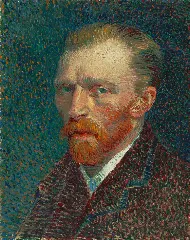 OriginalSelf-PortraitVincent van Gogh, 1887 · public domainWordsvivid colours
How to make typography art from a photo
Add your photo
Click Upload image, drag a file onto the canvas, or paste one with Ctrl+V (⌘V on a Mac). JPG, PNG and WebP all work. A built-in sample is shown until you add your own.
Pick a style
Words packs your text into every part of the picture, Grid draws it as ASCII-style characters, and Flow writes lines of text that follow the image's edges.
Write your text and choose a font
Type a name, a quote, lyrics or a poem. The text repeats as needed to fill the whole image. Six fonts are included, from a clean sans to a handwritten script.
Fine-tune and press Generate
Adjust Detail, Parts, Empty space and the colours, then press Generate (or Ctrl+Enter). Nothing changes until you do, so you can set several options at once.
Download the art
Save the finished piece as a PNG at twice the canvas size, or record the whole build animation as a video to share.
What is typography art?
Typography art is a picture drawn with type instead of lines and paint. Up close you see words and letters; step back and a face, an animal or a landscape appears. The idea is old. Guillaume Apollinaire's Calligrammes (1918) arranged poems into the shapes they described, typewriter artists built pictures from keystrokes, and early computer users drew with the characters on their screens.
This generator does the drawing for you. It reads your photo and decides where every character goes, how big it is and what colour it gets, so the result keeps the likeness of the original while being made entirely of text.
How the typography art generator works
First, the image is read for brightness, colour and edges. It is then split into parts: regions of similar colour that sit next to each other, such as a sky, a face or a shirt. Each part is filled with text sized to fit its shape, so the silhouette of the photo survives even though it is made entirely of type. Large words only go where the image is flat; detailed areas such as eyes and outlines get small words, so the important features stay sharp.
The fill is then played back as an animation. Characters fly, drop, rain or scramble into place, so you watch the picture appear piece by piece instead of all at once. Everything happens on your own device; the photo is never uploaded.
Choosing the right style
Each style suits a different kind of image and a different look:
- Words
- Best for gifts and posters. Your words appear at many sizes, like a word cloud shaped by the photo. Works well with portraits, pets and bold subjects.
- Grid
- The classic ASCII art look, with one character per cell. Best for high-contrast images, logos and a retro terminal feel.
- Flow
- Lines of text follow the curves of the image, like an engraving. Best for close-up portraits and images with strong shapes.
Settings that make the biggest difference
You rarely need to touch every control. These five change the result the most:
- Detail
- Smaller characters and more of them. Raise it for large canvases and busy photos.
- Parts
- How many regions the image is split into. Fewer parts give bigger, bolder areas of text.
- Empty space
- Keeps faint areas blank. Raise it to leave a plain background clean around your subject.
- Contrast
- Separates light and dark. Useful for flat, grey or low-light photos.
- Background
- On a dark background the bright parts of the photo get ink; on a light background the dark parts do. Switching it can completely change which parts of the picture show.
Animate the build and share it
The fill order decides which parts appear first: part by part, strongest tones first, outlines first, centre outward, top to bottom or scattered. The entrance decides how each character arrives: fly in, drop and bounce, letter rain, scramble, stamp or swirl. Build time sets how long the whole reveal takes, from 3 to 60 seconds.
Record video captures the entire build as an MP4 or WebM file, depending on your browser. It works well as a short reel or story: people watch the picture form, then see what it is.
Ideas for your text
Use a name for a portrait gift, song lyrics for a band poster, a wedding vow for a couple's photo, or a city's street names for a skyline. Pet portraits made from a pet's nicknames, graduation photos made from a class's names, and logos made from a company's values all work well. The text repeats to fill the whole image, so even a single word is enough.
Frequently asked questions
What kind of images work best?
Images with a clear subject and good contrast: portraits, animals, logos, silhouettes and landscapes with a strong horizon. Very dark or very flat images still work, but benefit from a higher Contrast setting.
Why are some parts of my photo empty?
On a dark background the bright parts of the photo get ink, and on a light background the dark parts do. Switch the background, or lower “Empty space”, to fill more of the image.
Is my photo uploaded anywhere?
No. Everything happens inside your browser: the image is analysed on your own device and never sent to a server.
Is it free? Is there a watermark?
It's free, with no sign-up and no watermark on the PNG or video.
Can I use the art commercially?
The art you make is yours to use, as long as you have the rights to the photo you started from. Using your own photos, or public-domain images, is the safe choice.
Does it work on a phone?
Yes. It runs in modern mobile browsers. Very high Detail settings take more processing power, so large canvases are smoother on a laptop or desktop.